Tutorial 7 of 7
Pose a figure by dragging hands and feet
Intermediate 6 min
Pose the Figure Lab mannequin by dragging a hand or foot, mirror it, keep a pose library and send the image on.
Figure Lab can pose its mannequin the way you would pose a wooden drawing doll: grab a hand or a foot and the rest of the limb follows. The joint angles are still there for fine tuning, and every pose stays editable.
Drag a hand or a foot
Open Figure reference from the book properties or the page editor. Four round handles sit on the hands and feet. Drag one and the shoulder, elbow, hip or knee bend so that the hand or foot follows your pointer. While you drag, the view stays fixed; when you let go, the figure is fitted to the preview again.
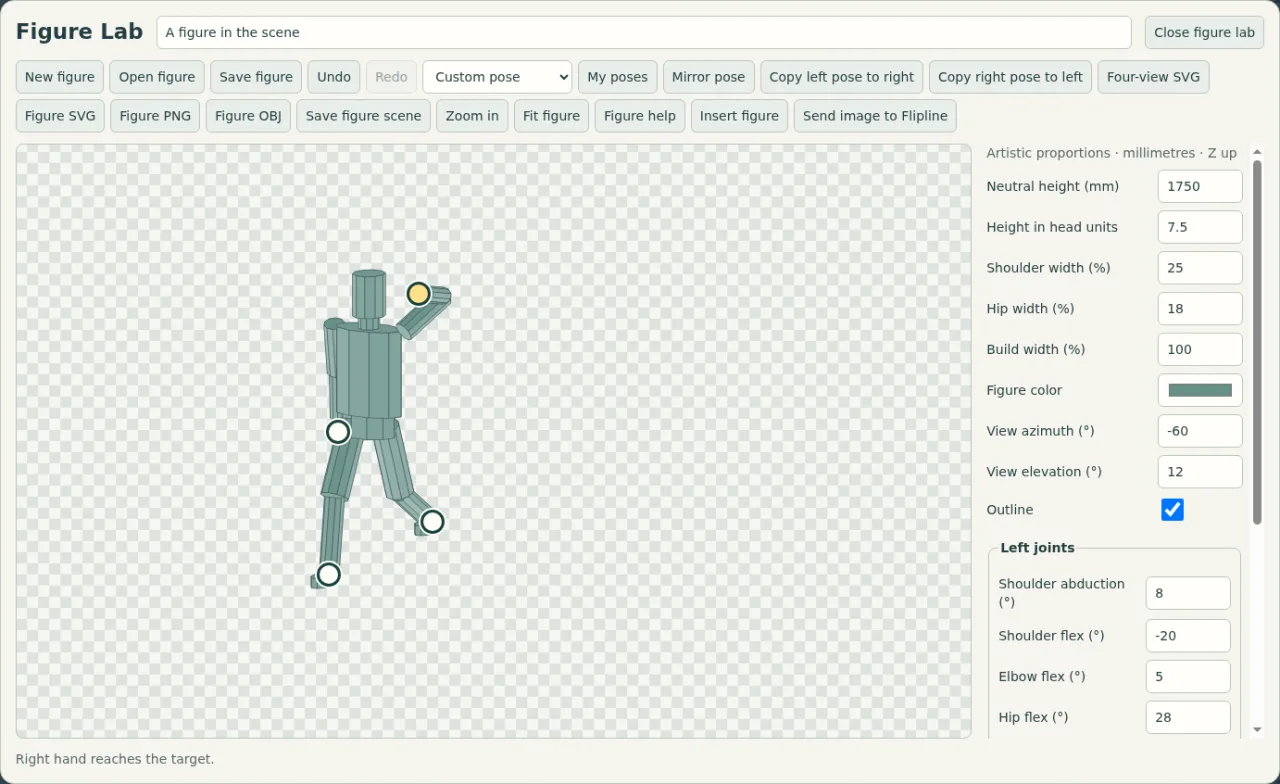
The joints keep their limits: an elbow never bends backwards and a knee bends only one way. If you drag beyond what the limb can reach, it stretches towards the pointer and the status line says that the target is out of reach or that a joint limit stops it. Legs bend forward and back only, so a foot follows the pointer within its own side plane.
The solver is the same inverse kinematics engine that Kinetica uses for robot arms. Each drag is one step in Undo and Redo, and the joint fields on the right show the new angles.
Pose with the keyboard
Press Tab until a handle is focused, then use the arrow keys. Every press moves the hand or foot 20 mm on screen; hold Shift for 100 mm. Page Up and Page Down move it towards you or away from you. For exact values, type the angles into the Left joints and Right joints fields; arrow keys there change one degree at a time.
Mirror a pose
Mirror pose swaps the left and right joints, so a figure waving with the right hand waves with the left. Copy left pose to right and Copy right pose to left make a symmetric pose from one side.
Keep a pose library
Open My poses, enter a name and choose Save current pose. Use pose later applies the joint angles and keeps your proportions and camera. Up to 30 poses stay in this browser.
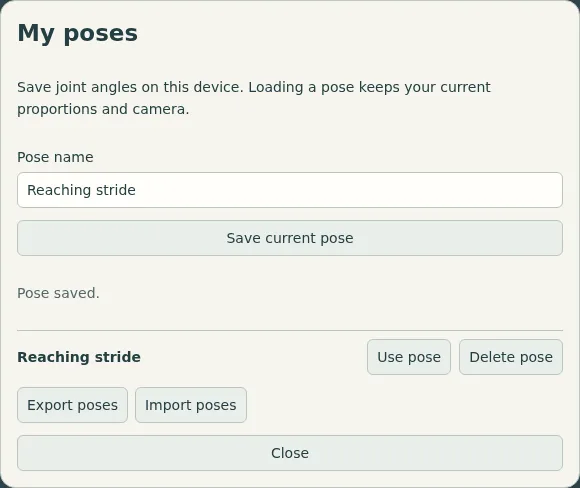
Export poses saves the whole list as a pose library file. Import poses adds the poses of such a file to your list, for example on another device or in Renderloom's Figure Lab.
Send the posed figure on
Insert figure places the transparent PNG in the selected panel. When Figure Lab runs in Renderloom, Send image to Panelcraft and Send image to Flipline hand the same PNG to those apps: Panelcraft puts it into a panel as art, Flipline offers to open it as a drawing or as a storyboard reference. The image is handed straight to the other app.
Agents and scripts can do the same through the Posed Figure Reference Maker tool: its reach targets place hands and feet at points in millimetres.
Ready to try it?